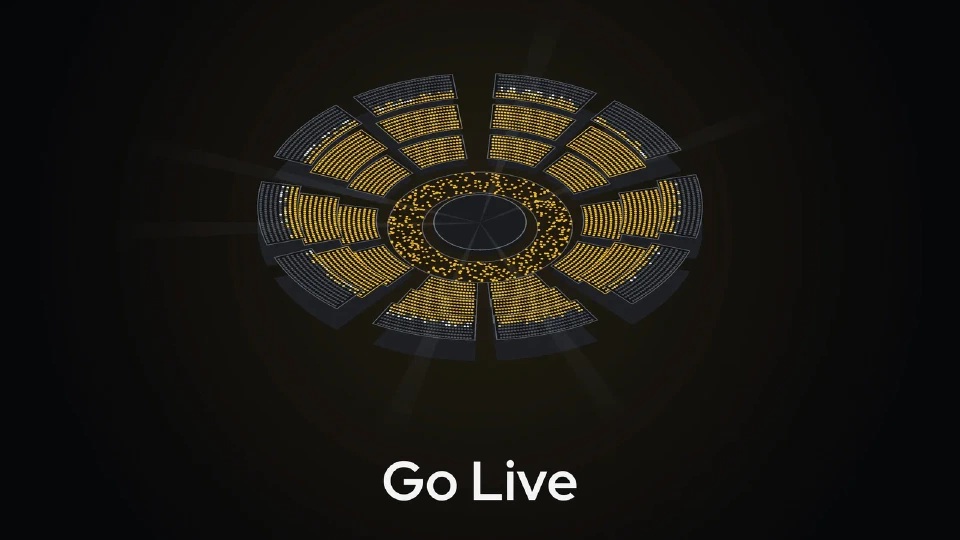
From Blueprint to Sold Out: One Venue Through Design, Render, Go Live
How one venue moves through Seatmap Pro: drawn in the editor, published to the renderer, sold through the Booking API, and filled on the night.
See how a seat map records accessible seats, styles them in the renderer, and where keyboard and screen-reader work belongs to your own page.
A ticketing platform can only sell an accessible seat properly if the chart knows which seat it is. When the map cannot record it, the seat looks like every other seat on screen, so the wheelchair position gets sold to someone who does not need it, and the person who does ends up on the phone.
Every seat in a Seatmap Pro schema can carry an accessible flag: it travels with the map the renderer loads, the renderer theme has a style override for it, and the venue editor sets it on any selection of seats. Keyboard interaction, screen-reader announcements and colour contrast belong to the booking page the integrator builds around the chart.
The flag sits in the seat data itself, published on the renderer specification as isAccessible on the seat interfaces, next to the seat identifier, its name and its coordinates. It is not an annotation held in one screen or one report.
Because it lives on the seat, the flag travels with the map. When booking-side code loads a schema, the accessible seats are listed in the payload the renderer receives, so the renderer knows which positions are designated before anyone clicks anything.
The renderer theme has a dedicated override for this one attribute. Each of the seven built-in seat states (default, unavailable, filtered, hovered, selected, loading and error) takes a style object with an optional accessible entry, applied when the seat is flagged accessible. That entry carries the same base fields as any seat style: size, fill colour, border, drop shadow, seat label typography and an optional image asset. The shipped booking and admin themes already populate the built-in states, so a house style for accessible positions is a theme change rather than custom drawing code. Custom seat states has the full contract.
Sections can be narrowed too. The renderer can filter sections so that only the ones you name stay prominent while the rest dim, and accessibility filtering is one of the uses the section states documentation names for it.
In the venue editor, accessible is a checkbox in the seat properties panel, and it applies to every seat currently selected. One seat or a block of seats is marked in a single action. The documented path runs through table editing mode: double-click a table and each seat becomes individually selectable, so you can set it hidden, accessible or marked. Round tables behave the same way, and the same three attributes appear in the user guide.
While you work, a seat with the flag set draws an accessibility glyph in place of its seat number on the editor canvas, at a larger size than the number it replaces, so a designated position is recognisable without opening its properties.
A theatre chart with wheelchair positions at the back of the stalls and one in a side box gets them marked once in the venue schema, and every booking page built on that chart shows the same designation. A platform selling for several houses can give all of them one visual treatment by editing a theme rather than each map. A platform whose venue adds an accessible block after a refit selects those seats and sets one checkbox instead of editing them one by one. For the wider picture of how this fits a performing-arts chart, see interactive seating charts for theaters and performing arts venues.
This is the half a vendor comparison needs stated plainly. Seatmap Pro accessible seat support is data and display: the flag on the seat, the payload it travels in, the style override that draws it, and the editor control that sets it.
Keyboard interaction, screen-reader announcements and colour contrast of the booking page belong to the page around the chart, which the integrator owns and builds. The chart is one component mounted into an element of that page, so focus order, announcements and contrast are decisions the page makes. If your booking flow has to meet a conformance target, plan and test it at your own page level.
The seat flag makes designated positions visible on the map; the booking path around them is yours to get right.
If you are working out how accessible positions would carry through your own charts, book a demo and bring one of your venue plans. We will show how the designation is set and how it reaches the booking side.
How one venue moves through Seatmap Pro: drawn in the editor, published to the renderer, sold through the Booking API, and filled on the night.
Hand a signed-in user from your ticketing site into the Seatmap Pro editor or booking widget without a second login using single-use SSO codes.
A developer guide to SVG for seating charts: viewBox and coordinates, Illustrator and Figma export gotchas, path simplification, and when to rasterize.